Rebaselining Control Limits
In some situations, it may be desirable to rebaseline the control limits at a particular point in time. For example, if a process improvement has been made, it may be desirable to recalculate the control limits based only on data after the improvement was made.
The SPC visual provides two methods for rebaselining control limits:
- Split Limits on Click: This option allows the user to click on a particular data point in the chart to split the control limits there: the clicked point ends one limit period, and the points before and after it each get their own limits. This is useful for ad-hoc rebaselining during data exploration.
- Rebaseline Groupings: By providing a column in the data that indicates different baselining periods, the control limits can be automatically recalculated for each period. This is useful for regular rebaselining based on known process changes.
Split Limits on Click
To enable this feature, simply toggle the Split Limits on Click option in the Data Settings menu. Once enabled, clicking on a data point in the chart ends a limit period at that point, so the points up to and including it, and the points after it, each get their own control limits. Clicking the same point again removes the split. Splits are ignored when the Grouping (Summary Table) field is used.
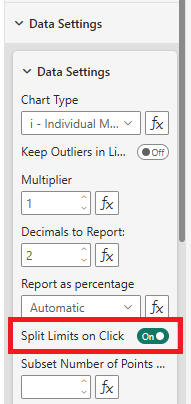
Be sure to toggle the option off again once you are finished rebaselining, otherwise the limits will continue to be rebaselined on each click. Splits made while the option was on are kept after it is turned off.
Rebaseline Groupings
While you can use the ‘Split Limits on Click’ option to manually/interactively rebaseline control limits, you might know in advance where you want to split the limits - or to do this dynamically.
To do this, simply provide an argument to the ‘Rebaseline Groupings’ input field which indicates, for each observation, how to group them when calculating the control limits.
For example, consider the following columns of data:
| Month | Numerator | Denominator | Rebaseline Group |
|---|---|---|---|
| 01/01/2010 | 3 | 5 | A |
| 01/02/2010 | 6 | 20 | A |
| 01/03/2010 | 4 | 10 | A |
| 01/04/2010 | 5 | 20 | A |
| 01/05/2010 | 7 | 20 | A |
| 01/06/2010 | 5 | 12 | A |
| 01/07/2010 | 4 | 20 | A |
| 01/08/2010 | 8 | 20 | A |
| 01/09/2010 | 7 | 15 | B |
| 01/10/2010 | 9 | 20 | B |
| 01/11/2010 | 7 | 15 | B |
| 01/12/2010 | 7 | 20 | B |
| 01/01/2011 | 8 | 21 | B |
| 01/02/2011 | 5 | 20 | B |
| 01/03/2011 | 10 | 20 | B |
| 01/04/2011 | 8 | 9 | B |
| 01/05/2011 | 8 | 20 | B |
By adding the Rebaseline Group column to the Rebaseline Groupings input field:
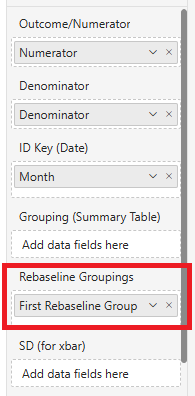
The control limits will be calculated separately for each group (this example uses the default i chart, which plots the numerator divided by the denominator):
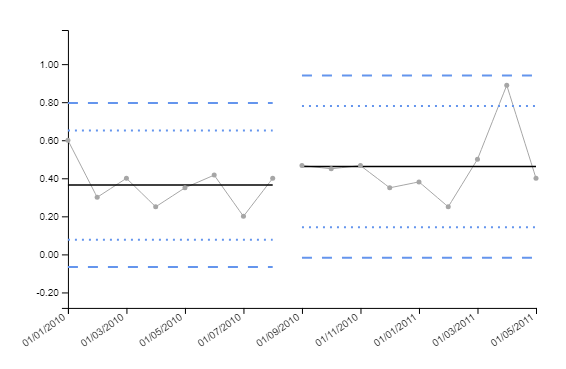
Note that it is not important what value you use for this grouping (this example uses “A” and “B”, but you could use any values), a new limit period simply starts wherever the value in the Rebaseline Group column changes from one row to the next. A sequence such as A, B, A therefore gives three periods, not two.